Web DevelopmentReact & Next.jsPerformance & SEOMERN Stack
Top 7 React Optimization Techniques to Boost Your App Performance in 2026.
Learn the top 7 React optimization techniques including Lazy Loading, Memoization, Debouncing, Throttling, Virtualization, Code Splitting, and Caching to build blazing fast React apps in 2026.

MetaSkillGroup
27 min read159
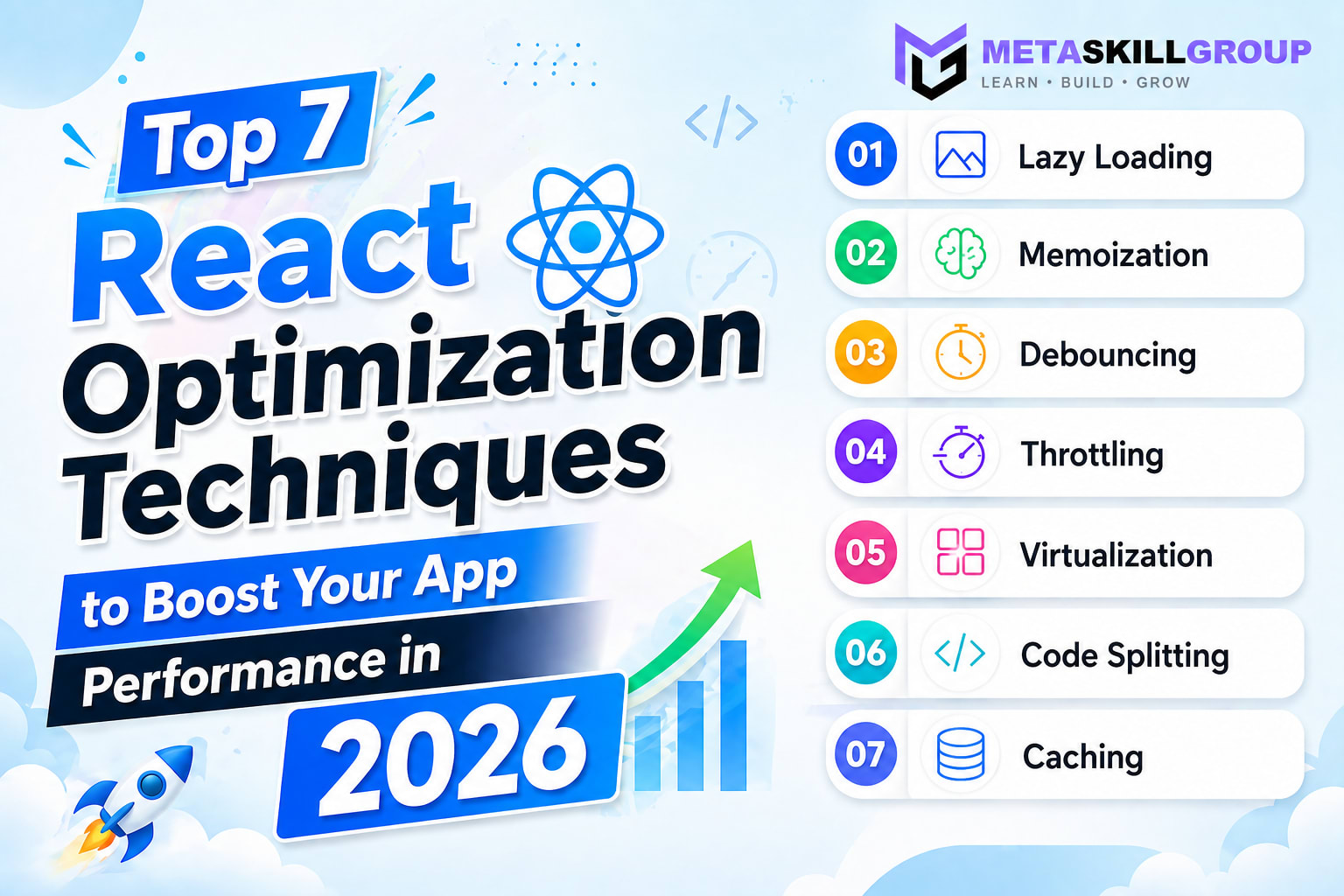
Top 7 React Optimization Techniques to Boost Your App Performance in 2026
React has become the backbone of modern web development — powering everything from simple landing pages to complex enterprise dashboards. But as your application grows, performance can silently degrade. Components re-render unnecessarily, bundle sizes balloon, and users start noticing sluggish interactions.
In 2026, with users expecting sub-second load times and buttery-smooth interactions, optimizing your React application is no longer optional — it is a competitive necessity. Whether you are building a startup MVP or scaling a production app to millions of users, these 7 battle-tested React optimization techniques will help you write faster, leaner, and smarter code.
What you will learn: Lazy Loading, Memoization, Debouncing, Throttling, Virtualization, Code Splitting, and Caching — each explained with real-world code examples, advantages, disadvantages, and when to use them.
💡 Quick answer: The seven techniques that speed up most React apps are lazy loading, memoization, debouncing, throttling, virtualization, code splitting and caching. Start with route-level code splitting and lazy loading, add TanStack Query for caching, and use memoization only where the React DevTools Profiler shows real re-render problems.
Table of Contents
- Lazy Loading
- Memoization
- Debouncing
- Throttling
- Virtualization
- Code Splitting
- Caching
- Quick Comparison Table
- Conclusion
1. Lazy Loading

Lazy Loading is one of the most impactful React optimization techniques available today. By default, React loads your entire application upfront — every component, every page, every module — even the ones a user may never visit. This increases the initial bundle size and dramatically slows down your Time to Interactive (TTI).
Lazy Loading solves this by deferring the loading of components, images, and modules until they are actually needed. Instead of shipping everything at once, you load resources on demand — when a user navigates to a specific route or scrolls to a particular section.
React provides a built-in solution through React.lazy() combined with Suspense. This allows you to dynamically import components and show a fallback UI while the component is being loaded in the background.
How Lazy Loading Works
When a user visits your app, only the critical components for the current view are loaded. All other components are fetched asynchronously in separate JavaScript chunks. This reduces the initial payload and makes your app feel significantly faster on first load.
Code Example
jsx1import React, { Suspense, lazy } from "react"; 2import { Routes, Route } from "react-router-dom"; 3 4// Without Lazy Loading — loads everything upfront 5// import Dashboard from "./pages/Dashboard"; 6// import Analytics from "./pages/Analytics"; 7// import Settings from "./pages/Settings"; 8 9// With Lazy Loading — loads only when needed 10const Dashboard = lazy(() => import("./pages/Dashboard")); 11const Analytics = lazy(() => import("./pages/Analytics")); 12const Settings = lazy(() => import("./pages/Settings")); 13 14// Custom Loading Fallback Component 15function PageLoader() { 16 return ( 17 <div className="flex items-center justify-center min-h-screen"> 18 <div className="animate-spin rounded-full h-12 w-12 border-b-2 border-blue-500" /> 19 </div> 20 ); 21} 22 23export default function App() { 24 return ( 25 <Suspense fallback={<PageLoader />}> 26 <Routes> 27 <Route path="/dashboard" element={<Dashboard />} /> 28 <Route path="/analytics" element={<Analytics />} /> 29 <Route path="/settings" element={<Settings />} /> 30 </Routes> 31 </Suspense> 32 ); 33}
You can also lazy load images using the native HTML loading="lazy" attribute or libraries like react-lazyload for more control over scroll-based loading thresholds.
jsx1// Lazy loading images natively 2function BlogCard({ post }) { 3 return ( 4 <div className="blog-card"> 5 <img 6 src={post.thumbnail} 7 alt={post.title} 8 loading="lazy" 9 width={400} 10 height={250} 11 /> 12 <h2>{post.title}</h2> 13 <p>{post.description}</p> 14 </div> 15 ); 16}
Advantages & Disadvantages
| Advantages | Disadvantages |
|---|---|
| Reduces initial bundle size significantly | Slight delay when component loads for first time |
| Improves Time to Interactive (TTI) | Requires proper Suspense boundaries setup |
| Better user experience on slow networks | Error boundaries needed for failed imports |
| Works great with route-based splitting | Can cause layout shift if not handled properly |
| Supported natively by React and browsers | Fallback UI design adds extra development effort |
When to Use Lazy Loading
Use Lazy Loading for routes that are not part of the critical user journey — admin dashboards, settings pages, analytics views, and modals that open rarely. Also apply it to heavy components like rich text editors, chart libraries, and map components that are only needed in specific parts of your app.
2. Memoization

Memoization is a performance optimization technique where the result of an expensive computation is cached and reused when the same inputs occur again. In React, unnecessary re-renders are one of the biggest causes of poor performance — and memoization is the most direct solution.
React provides three powerful memoization tools out of the box: React.memo, useMemo, and useCallback. Each serves a different purpose but all share the same goal — prevent React from doing work it does not need to do.
Understanding when React re-renders is the key to applying memoization effectively. A component re-renders when its state changes, its parent re-renders, or its props change. Memoization short-circuits this process by comparing previous and current values before deciding to re-render.
React.memo — Memoize Entire Components
jsx1import React, { memo, useState } from "react"; 2 3// This component re-renders every time parent re-renders 4// Even if name prop has not changed 5function UserCard({ name, role }) { 6 console.log(`UserCard rendered for: ${name}`); 7 return ( 8 <div className="p-4 border rounded-lg"> 9 <h3 className="font-bold text-lg">{name}</h3> 10 <p className="text-gray-500">{role}</p> 11 </div> 12 ); 13} 14 15// Wrapped with memo — only re-renders when name or role changes 16const MemoizedUserCard = memo(UserCard); 17 18// Custom comparison function for fine-grained control 19const MemoizedUserCardCustom = memo(UserCard, (prevProps, nextProps) => { 20 // Return true = skip re-render (props are equal) 21 // Return false = do re-render (props changed) 22 return prevProps.name === nextProps.name && prevProps.role === nextProps.role; 23}); 24 25export default function UserList() { 26 const [count, setCount] = useState(0); 27 28 return ( 29 <div> 30 <button onClick={() => setCount((c) => c + 1)}> 31 Clicked {count} times 32 </button> 33 {/* This will NOT re-render when count changes */} 34 <MemoizedUserCard name="Arjun Sharma" role="Senior Developer" /> 35 </div> 36 ); 37}
useMemo — Memoize Expensive Computations
jsx1import React, { useState, useMemo } from "react"; 2 3function ProductList({ products, searchQuery }) { 4 // BAD — This runs on every render even if products and searchQuery haven't changed 5 // const filteredProducts = products.filter(p => 6 // p.name.toLowerCase().includes(searchQuery.toLowerCase()) 7 // ); 8 9 // GOOD — Only recalculates when products or searchQuery changes 10 const filteredProducts = useMemo(() => { 11 console.log("Filtering products..."); 12 return products.filter((product) => 13 product.name.toLowerCase().includes(searchQuery.toLowerCase()) 14 ); 15 }, [products, searchQuery]); 16 17 // Also great for expensive calculations 18 const totalRevenue = useMemo(() => { 19 return filteredProducts.reduce((sum, product) => { 20 return sum + product.price * product.soldCount; 21 }, 0); 22 }, [filteredProducts]); 23 24 return ( 25 <div> 26 <p className="text-sm text-gray-500"> 27 Total Revenue: ₹{totalRevenue.toLocaleString()} 28 </p> 29 {filteredProducts.map((product) => ( 30 <div key={product.id} className="p-3 border rounded mb-2"> 31 <span>{product.name}</span> 32 <span>₹{product.price}</span> 33 </div> 34 ))} 35 </div> 36 ); 37}
useCallback — Memoize Functions
jsx1import React, { useState, useCallback, memo } from "react"; 2 3// Child component that accepts a function as prop 4const ActionButton = memo(({ onClick, label }) => { 5 console.log(`${label} button rendered`); 6 return ( 7 <button onClick={onClick} className="px-4 py-2 bg-blue-500 text-white rounded"> 8 {label} 9 </button> 10 ); 11}); 12 13export default function TodoApp() { 14 const [todos, setTodos] = useState([]); 15 const [input, setInput] = useState(""); 16 17 // BAD — New function reference on every render 18 // Re-renders ActionButton every time even if nothing changed 19 // const handleAdd = () => setTodos(prev => [...prev, input]); 20 21 // GOOD — Stable function reference, ActionButton won't re-render unnecessarily 22 const handleAdd = useCallback(() => { 23 if (!input.trim()) return; 24 setTodos((prev) => [...prev, { id: Date.now(), text: input }]); 25 setInput(""); 26 }, [input]); 27 28 const handleClear = useCallback(() => { 29 setTodos([]); 30 }, []); 31 32 return ( 33 <div className="p-6 max-w-md mx-auto"> 34 <input 35 value={input} 36 onChange={(e) => setInput(e.target.value)} 37 placeholder="Add a todo..." 38 className="w-full p-2 border rounded mb-3" 39 /> 40 <div className="flex gap-2"> 41 <ActionButton onClick={handleAdd} label="Add Todo" /> 42 <ActionButton onClick={handleClear} label="Clear All" /> 43 </div> 44 <ul className="mt-4 space-y-2"> 45 {todos.map((todo) => ( 46 <li key={todo.id} className="p-2 bg-gray-50 rounded"> 47 {todo.text} 48 </li> 49 ))} 50 </ul> 51 </div> 52 ); 53}
Advantages & Disadvantages
| Advantages | Disadvantages |
|---|---|
| Prevents unnecessary component re-renders | Overusing adds memory overhead |
| Speeds up expensive calculations significantly | Dependency arrays are easy to misconfigure |
| Stable function references prevent child re-renders | Makes code harder to read and debug |
| Works seamlessly with React DevTools profiler | Premature memoization can hurt more than help |
| Great for lists with many child components | React.memo does shallow comparison by default |
When to Use Memoization
Apply React.memo to pure presentational components that receive the same props frequently. Use useMemo for computationally expensive operations like filtering large datasets or sorting. Use useCallback when passing callbacks to memoized child components or as dependencies in useEffect.
3. Debouncing

Every time a user types in a search box, your app might be making an API call. If the user types "react optimization", that is 18 characters — potentially 18 API calls firing in rapid succession. This floods your server, increases costs, and degrades user experience. Debouncing solves this elegantly.
Debouncing is a technique that delays the execution of a function until after a specified wait time has elapsed since the last time it was called. In simple terms — wait for the user to stop doing something before reacting to it. This is perfect for search inputs, form validation, resize handlers, and auto-save features.
How Debouncing Works
When a user types, the debounced function resets its timer on every keystroke. Only when the user stops typing for the specified delay (typically 300-500ms) does the actual function execute. This transforms 18 API calls into just 1.
Code Example
jsx1import React, { useState, useEffect, useCallback, useRef } from "react"; 2 3// Custom useDebounce Hook 4function useDebounce(value, delay = 300) { 5 const [debouncedValue, setDebouncedValue] = useState(value); 6 7 useEffect(() => { 8 const timer = setTimeout(() => { 9 setDebouncedValue(value); 10 }, delay); 11 12 // Cleanup — cancel timer if value changes before delay 13 return () => clearTimeout(timer); 14 }, [value, delay]); 15 16 return debouncedValue; 17} 18 19// Search component using useDebounce hook 20function SearchBar() { 21 const [query, setQuery] = useState(""); 22 const [results, setResults] = useState([]); 23 const [isLoading, setIsLoading] = useState(false); 24 25 // Only updates after user stops typing for 400ms 26 const debouncedQuery = useDebounce(query, 400); 27 28 useEffect(() => { 29 if (!debouncedQuery.trim()) { 30 setResults([]); 31 return; 32 } 33 34 const fetchResults = async () => { 35 setIsLoading(true); 36 try { 37 const response = await fetch( 38 `/api/search?q=${encodeURIComponent(debouncedQuery)}` 39 ); 40 const data = await response.json(); 41 setResults(data.results); 42 } catch (error) { 43 console.error("Search failed:", error); 44 } finally { 45 setIsLoading(false); 46 } 47 }; 48 49 fetchResults(); 50 }, [debouncedQuery]); // Only fires when debouncedQuery changes 51 52 return ( 53 <div className="relative max-w-lg mx-auto"> 54 <input 55 type="text" 56 value={query} 57 onChange={(e) => setQuery(e.target.value)} 58 placeholder="Search articles..." 59 className="w-full p-3 border-2 border-gray-200 rounded-xl focus:border-blue-500 outline-none" 60 /> 61 62 {isLoading && ( 63 <div className="absolute right-3 top-3"> 64 <div className="animate-spin h-5 w-5 border-2 border-blue-500 border-t-transparent rounded-full" /> 65 </div> 66 )} 67 68 {results.length > 0 && ( 69 <div className="absolute top-full left-0 right-0 bg-white border rounded-xl shadow-lg mt-1 z-50"> 70 {results.map((result) => ( 71 <div 72 key={result.id} 73 className="p-3 hover:bg-gray-50 cursor-pointer border-b last:border-b-0" 74 > 75 <p className="font-medium">{result.title}</p> 76 <p className="text-sm text-gray-500">{result.description}</p> 77 </div> 78 ))} 79 </div> 80 )} 81 </div> 82 ); 83} 84 85// Debouncing with useRef for non-reactive use cases 86function AutoSaveEditor() { 87 const [content, setContent] = useState(""); 88 const [saveStatus, setSaveStatus] = useState("All changes saved"); 89 const debounceTimer = useRef(null); 90 91 const handleChange = (e) => { 92 const newContent = e.target.value; 93 setContent(newContent); 94 setSaveStatus("Saving..."); 95 96 // Clear previous timer 97 if (debounceTimer.current) clearTimeout(debounceTimer.current); 98 99 // Set new timer 100 debounceTimer.current = setTimeout(async () => { 101 await saveToServer(newContent); 102 setSaveStatus("All changes saved ✓"); 103 }, 1000); 104 }; 105 106 const saveToServer = async (data) => { 107 // API call to save content 108 console.log("Saving:", data); 109 }; 110 111 return ( 112 <div className="p-4"> 113 <div className="flex justify-between mb-2"> 114 <h3 className="font-semibold">Editor</h3> 115 <span className="text-sm text-gray-500">{saveStatus}</span> 116 </div> 117 <textarea 118 value={content} 119 onChange={handleChange} 120 rows={10} 121 className="w-full p-3 border rounded-lg resize-none" 122 placeholder="Start writing..." 123 /> 124 </div> 125 ); 126} 127 128export { SearchBar, AutoSaveEditor };
Advantages & Disadvantages
| Advantages | Disadvantages |
|---|---|
| Drastically reduces API calls and server load | Introduces intentional delay in response |
| Saves bandwidth and reduces costs | Too long a delay feels unresponsive to users |
| Prevents UI jank from rapid state updates | Too short a delay defeats the purpose |
| Easy to implement with custom hooks | Not suitable for real-time features like live chat |
| Works great for search, validation, auto-save | Harder to test because of timer dependencies |
When to Use Debouncing
Debouncing is ideal for search inputs, form field validation on blur, auto-save functionality, and any feature where you want to wait for the user to finish an action before processing. The standard delay is 300-500ms for search and 500ms-1s for auto-save.
4. Throttling

While debouncing waits for silence, throttling enforces a speed limit. Throttling ensures a function executes at most once within a specified time interval — no matter how many times it is triggered. This is the key difference between debouncing and throttling.
Imagine a user scrolling rapidly through a page. A scroll event can fire hundreds of times per second. If each event triggers a complex calculation or an API call, your app will freeze. Throttling caps execution to, say, once every 100ms — making your scroll handlers, resize listeners, and infinite scroll implementations smooth and efficient.
Debouncing vs Throttling — Key Difference
Think of it this way. You are at a buffet restaurant. Debouncing means the chef only starts cooking after you stop adding items to your plate. Throttling means the chef cooks once every 5 minutes regardless of how many items you keep adding.
Code Example
jsx1import React, { useState, useEffect, useRef, useCallback } from "react"; 2 3// Custom useThrottle Hook 4function useThrottle(callback, delay = 200) { 5 const lastCall = useRef(0); 6 const timeoutRef = useRef(null); 7 8 return useCallback( 9 (...args) => { 10 const now = Date.now(); 11 const timeSinceLastCall = now - lastCall.current; 12 13 if (timeSinceLastCall >= delay) { 14 lastCall.current = now; 15 callback(...args); 16 } else { 17 // Schedule the last call to execute after remaining time 18 if (timeoutRef.current) clearTimeout(timeoutRef.current); 19 timeoutRef.current = setTimeout(() => { 20 lastCall.current = Date.now(); 21 callback(...args); 22 }, delay - timeSinceLastCall); 23 } 24 }, 25 [callback, delay] 26 ); 27} 28 29// Scroll tracker with throttling 30function ScrollTracker() { 31 const [scrollInfo, setScrollInfo] = useState({ 32 position: 0, 33 percentage: 0, 34 direction: "none", 35 }); 36 const lastScrollY = useRef(0); 37 38 const handleScroll = useCallback(() => { 39 const currentScrollY = window.scrollY; 40 const maxScroll = 41 document.documentElement.scrollHeight - window.innerHeight; 42 const percentage = Math.round((currentScrollY / maxScroll) * 100); 43 const direction = currentScrollY > lastScrollY.current ? "down" : "up"; 44 45 setScrollInfo({ 46 position: Math.round(currentScrollY), 47 percentage, 48 direction, 49 }); 50 51 lastScrollY.current = currentScrollY; 52 }, []); 53 54 // Throttle scroll handler to fire at most once every 150ms 55 const throttledScroll = useThrottle(handleScroll, 150); 56 57 useEffect(() => { 58 window.addEventListener("scroll", throttledScroll); 59 return () => window.removeEventListener("scroll", throttledScroll); 60 }, [throttledScroll]); 61 62 return ( 63 <div className="fixed top-4 right-4 bg-black text-white p-3 rounded-lg text-sm"> 64 <p>Position: {scrollInfo.position}px</p> 65 <p>Progress: {scrollInfo.percentage}%</p> 66 <p>Direction: {scrollInfo.direction}</p> 67 </div> 68 ); 69} 70 71// Infinite scroll with throttling 72function InfiniteScrollList() { 73 const [items, setItems] = useState(Array.from({ length: 20 }, (_, i) => i + 1)); 74 const [isLoading, setIsLoading] = useState(false); 75 const [page, setPage] = useState(1); 76 77 const loadMoreItems = useCallback(async () => { 78 if (isLoading) return; 79 80 const scrollBottom = 81 window.innerHeight + window.scrollY >= document.body.offsetHeight - 200; 82 83 if (!scrollBottom) return; 84 85 setIsLoading(true); 86 // Simulate API call 87 await new Promise((resolve) => setTimeout(resolve, 800)); 88 const newItems = Array.from( 89 { length: 20 }, 90 (_, i) => (page * 20) + i + 1 91 ); 92 setItems((prev) => [...prev, ...newItems]); 93 setPage((p) => p + 1); 94 setIsLoading(false); 95 }, [isLoading, page]); 96 97 // Throttle to fire at most once every 300ms 98 const throttledLoadMore = useThrottle(loadMoreItems, 300); 99 100 useEffect(() => { 101 window.addEventListener("scroll", throttledLoadMore); 102 return () => window.removeEventListener("scroll", throttledLoadMore); 103 }, [throttledLoadMore]); 104 105 return ( 106 <div className="max-w-2xl mx-auto p-4"> 107 {items.map((item) => ( 108 <div key={item} className="p-4 mb-3 bg-white border rounded-lg shadow-sm"> 109 <h3 className="font-semibold">Blog Post #{item}</h3> 110 <p className="text-gray-500 text-sm mt-1"> 111 This is a sample blog post card loaded via infinite scroll. 112 </p> 113 </div> 114 ))} 115 {isLoading && ( 116 <div className="text-center py-6"> 117 <div className="inline-block animate-spin h-8 w-8 border-4 border-blue-500 border-t-transparent rounded-full" /> 118 </div> 119 )} 120 </div> 121 ); 122} 123 124export { ScrollTracker, InfiniteScrollList };
Advantages & Disadvantages
| Advantages | Disadvantages |
|---|---|
| Prevents performance degradation from rapid events | Some events might be skipped entirely |
| Makes scroll and resize handlers smooth | Last event may not always execute |
| Controls API call rate for real-time features | More complex to implement than debouncing |
| Ensures consistent execution rate | Can feel laggy if threshold is too high |
| Great for infinite scroll and game loops | Not ideal for one-time actions like form submit |
When to Use Throttling
Throttling is perfect for scroll event handlers, window resize listeners, mouse move tracking, infinite scroll implementations, rate-limited API polling, and any event that fires continuously in rapid bursts. Use 100-200ms for scroll events and 300-500ms for resize events.
5. Virtualization

Imagine rendering a table with 10,000 rows. Without virtualization, React creates 10,000 DOM nodes simultaneously — each consuming memory, triggering layout calculations, and slowing down the browser to a crawl. Virtualization is the solution: only render what the user can actually see.
Virtualization, also known as windowing, is a technique where only the visible portion of a large list is rendered in the DOM. As the user scrolls, items that leave the viewport are unmounted and new items entering the viewport are mounted. The result is that regardless of whether your list has 100 or 100,000 items, the DOM always contains only the visible rows.
The most popular libraries for virtualization in React are react-window (lightweight) and react-virtual (flexible, framework-agnostic). TanStack Virtual is the modern go-to choice in 2026.
Code Example
jsx1import React, { useState, useMemo, useCallback } from "react"; 2import { FixedSizeList, VariableSizeList } from "react-window"; 3 4// Generate large dataset 5const generateUsers = (count) => 6 Array.from({ length: count }, (_, i) => ({ 7 id: i + 1, 8 name: `User ${i + 1}`, 9 email: `user${i + 1}@example.com`, 10 role: i % 3 === 0 ? "Admin" : i % 3 === 1 ? "Editor" : "Viewer", 11 joinedAt: new Date(Date.now() - Math.random() * 1e10).toLocaleDateString(), 12 avatar: `https://api.dicebear.com/7.x/avataaars/svg?seed=${i}`, 13 })); 14 15// Fixed height row component 16const UserRow = React.memo(({ index, style, data }) => { 17 const user = data[index]; 18 return ( 19 <div 20 style={style} 21 className={`flex items-center gap-4 px-4 border-b ${ 22 index % 2 === 0 ? "bg-white" : "bg-gray-50" 23 }`} 24 > 25 <span className="w-12 text-gray-400 text-sm">{user.id}</span> 26 <img 27 src={user.avatar} 28 alt={user.name} 29 className="w-9 h-9 rounded-full" 30 loading="lazy" 31 /> 32 <div className="flex-1 min-w-0"> 33 <p className="font-medium text-gray-800 truncate">{user.name}</p> 34 <p className="text-sm text-gray-500 truncate">{user.email}</p> 35 </div> 36 <span 37 className={`px-2 py-0.5 rounded-full text-xs font-medium ${ 38 user.role === "Admin" 39 ? "bg-red-100 text-red-700" 40 : user.role === "Editor" 41 ? "bg-blue-100 text-blue-700" 42 : "bg-green-100 text-green-700" 43 }`} 44 > 45 {user.role} 46 </span> 47 <span className="text-sm text-gray-400 hidden sm:block"> 48 {user.joinedAt} 49 </span> 50 </div> 51 ); 52}); 53 54// Main virtualized list component 55export default function VirtualizedUserTable() { 56 const [searchQuery, setSearchQuery] = useState(""); 57 const allUsers = useMemo(() => generateUsers(10000), []); 58 59 const filteredUsers = useMemo(() => { 60 if (!searchQuery) return allUsers; 61 return allUsers.filter( 62 (user) => 63 user.name.toLowerCase().includes(searchQuery.toLowerCase()) || 64 user.email.toLowerCase().includes(searchQuery.toLowerCase()) 65 ); 66 }, [allUsers, searchQuery]); 67 68 return ( 69 <div className="max-w-4xl mx-auto p-4"> 70 <div className="mb-4 flex items-center justify-between"> 71 <h2 className="text-xl font-bold"> 72 Users ({filteredUsers.length.toLocaleString()}) 73 </h2> 74 <input 75 type="text" 76 placeholder="Search users..." 77 value={searchQuery} 78 onChange={(e) => setSearchQuery(e.target.value)} 79 className="px-4 py-2 border rounded-lg w-64" 80 /> 81 </div> 82 83 <div className="border rounded-xl overflow-hidden shadow-sm"> 84 {/* Header */} 85 <div className="flex items-center gap-4 px-4 py-3 bg-gray-100 font-semibold text-sm text-gray-600 border-b"> 86 <span className="w-12">#</span> 87 <span className="w-9" /> 88 <span className="flex-1">Name / Email</span> 89 <span className="w-20">Role</span> 90 <span className="hidden sm:block w-24">Joined</span> 91 </div> 92 93 {filteredUsers.length === 0 ? ( 94 <div className="text-center py-12 text-gray-500">No users found</div> 95 ) : ( 96 <FixedSizeList 97 height={500} 98 itemCount={filteredUsers.length} 99 itemSize={64} 100 itemData={filteredUsers} 101 width="100%" 102 > 103 {UserRow} 104 </FixedSizeList> 105 )} 106 </div> 107 108 <p className="text-xs text-gray-400 mt-2 text-right"> 109 Rendering {Math.min(10, filteredUsers.length)} of{" "} 110 {filteredUsers.length.toLocaleString()} rows in DOM 111 </p> 112 </div> 113 ); 114}
Advantages & Disadvantages
| Advantages | Disadvantages |
|---|---|
| Handles lists of thousands of items smoothly | Adds library dependency (react-window etc.) |
| Dramatically reduces DOM node count | Fixed height required for FixedSizeList |
| Constant memory usage regardless of list size | Variable height items are complex to implement |
| Scroll performance remains smooth at any scale | CSS-based animations can be tricky with windowing |
| Works great with search and filtering | Accessibility (screen readers) needs extra care |
When to Use Virtualization
Use virtualization whenever you are rendering lists or tables with more than 100 items. It is especially critical for data tables, chat message lists, product catalogs, social media feeds, and log viewers. If your list is under 50-100 items, the overhead of virtualization may not be worth it.
6. Code Splitting

Your React application is bundled into JavaScript files by tools like Webpack or Vite. Without code splitting, everything ships in one massive bundle — your home page, your admin panel, your charts, your unused utilities — all of it. This is like buying a book where you get all sequels bundled together even if you only want the first one.
Code Splitting breaks your application into smaller chunks that are loaded on demand. Combined with Lazy Loading, it ensures users only download the JavaScript they actually need for the current page. This can reduce your initial bundle size by 40-70% in large applications.
React and modern bundlers like Vite and Webpack support code splitting natively. You can split at the route level, component level, or even at the library level.
Code Example
jsx1import React, { Suspense, lazy, useState } from "react"; 2import { BrowserRouter, Routes, Route, Link } from "react-router-dom"; 3 4// Route-level code splitting 5const Home = lazy(() => import("./pages/Home")); 6const BlogList = lazy(() => import("./pages/BlogList")); 7const BlogDetail = lazy(() => import("./pages/BlogDetail")); 8 9// Named export handling 10const AdminDashboard = lazy(() => 11 import("./pages/Admin").then((module) => ({ default: module.AdminDashboard })) 12); 13 14// Prefetch on hover — loads chunk before user clicks 15const prefetchBlogList = () => import("./pages/BlogList"); 16 17function NavLink({ to, children, onMouseEnter }) { 18 return ( 19 <Link 20 to={to} 21 onMouseEnter={onMouseEnter} 22 className="px-4 py-2 text-blue-600 hover:text-blue-800 font-medium" 23 > 24 {children} 25 </Link> 26 ); 27} 28 29// Loading fallback with skeleton 30function PageSkeleton() { 31 return ( 32 <div className="max-w-4xl mx-auto p-8 animate-pulse"> 33 <div className="h-8 bg-gray-200 rounded w-1/2 mb-4" /> 34 <div className="h-4 bg-gray-200 rounded w-full mb-2" /> 35 <div className="h-4 bg-gray-200 rounded w-5/6 mb-2" /> 36 <div className="h-4 bg-gray-200 rounded w-4/6 mb-8" /> 37 <div className="grid grid-cols-3 gap-4"> 38 {[1, 2, 3].map((i) => ( 39 <div key={i} className="h-40 bg-gray-200 rounded-xl" /> 40 ))} 41 </div> 42 </div> 43 ); 44} 45 46export default function App() { 47 return ( 48 <BrowserRouter> 49 <nav className="flex gap-2 p-4 border-b bg-white sticky top-0 z-50 shadow-sm"> 50 <NavLink to="/">Home</NavLink> 51 {/* Prefetch BlogList chunk on hover */} 52 <NavLink to="/blogs" onMouseEnter={prefetchBlogList}> 53 Blogs 54 </NavLink> 55 <NavLink to="/admin">Admin</NavLink> 56 </nav> 57 58 <Suspense fallback={<PageSkeleton />}> 59 <Routes> 60 <Route path="/" element={<Home />} /> 61 <Route path="/blogs" element={<BlogList />} /> 62 <Route path="/blogs/:slug" element={<BlogDetail />} /> 63 <Route path="/admin" element={<AdminDashboard />} /> 64 </Routes> 65 </Suspense> 66 </BrowserRouter> 67 ); 68}
jsx1// vite.config.js — Manual chunk splitting 2import { defineConfig } from "vite"; 3import react from "@vitejs/plugin-react"; 4 5export default defineConfig({ 6 plugins: [react()], 7 build: { 8 rollupOptions: { 9 output: { 10 manualChunks: { 11 // Vendor chunk — rarely changes, cached by browser 12 vendor: ["react", "react-dom", "react-router-dom"], 13 // Chart libraries in separate chunk 14 charts: ["recharts", "chart.js"], 15 // UI component library 16 ui: ["@radix-ui/react-dialog", "@radix-ui/react-dropdown-menu"], 17 }, 18 }, 19 }, 20 // Warn if any chunk exceeds 500KB 21 chunkSizeWarningLimit: 500, 22 }, 23});
Advantages & Disadvantages
| Advantages | Disadvantages |
|---|---|
| Reduces initial bundle size by 40-70% | Slight network delay when loading new chunks |
| Faster First Contentful Paint (FCP) | More complex build configuration |
| Better Core Web Vitals scores | Requires careful Suspense boundary placement |
| Cached chunks reused across navigations | Too many small chunks can hurt HTTP/1.1 performance |
| Works with prefetching for seamless UX | Error handling for failed chunk loads is necessary |
When to Use Code Splitting
Apply route-level splitting to every page in your application — it is almost always worth it. Use component-level splitting for heavy components like rich text editors, PDF viewers, map components, and complex chart libraries. Use manualChunks in Vite or splitChunks in Webpack to separate vendor dependencies that change rarely and benefit from long-term browser caching.
7. Caching

Every time a user navigates between pages in your app, are you making the same API calls again? Fetching the same user profile, the same blog list, the same product catalog — over and over? Caching stores the result of expensive operations and serves them instantly on subsequent requests, eliminating redundant network calls entirely.
In React applications, caching operates at multiple levels: in-memory state caching (useState, useRef), server-state caching with libraries like TanStack Query or SWR, HTTP cache headers, service workers for offline support, and browser storage for persistence.
TanStack Query (formerly React Query) is the gold standard for server-state caching in React in 2026. It handles cache invalidation, background refetching, stale-while-revalidate patterns, and optimistic updates — all out of the box.
Code Example
jsx1import React, { useState } from "react"; 2import { 3 QueryClient, 4 QueryClientProvider, 5 useQuery, 6 useMutation, 7 useInfiniteQuery, 8 useQueryClient, 9} from "@tanstack/react-query"; 10 11// Configure global cache settings 12const queryClient = new QueryClient({ 13 defaultOptions: { 14 queries: { 15 staleTime: 5 * 60 * 1000, // Data is fresh for 5 minutes 16 gcTime: 10 * 60 * 1000, // Cache garbage collected after 10 minutes 17 retry: 2, // Retry failed requests twice 18 refetchOnWindowFocus: false, // Don't refetch when tab regains focus 19 }, 20 }, 21}); 22 23// API functions 24const api = { 25 getBlogs: async ({ page = 1, limit = 10 } = {}) => { 26 const res = await fetch(`/api/blogs?page=${page}&limit=${limit}`); 27 if (!res.ok) throw new Error("Failed to fetch blogs"); 28 return res.json(); 29 }, 30 getBlog: async (slug) => { 31 const res = await fetch(`/api/blogs/${slug}`); 32 if (!res.ok) throw new Error("Blog not found"); 33 return res.json(); 34 }, 35 likeBlog: async (blogId) => { 36 const res = await fetch(`/api/blogs/${blogId}/like`, { method: "POST" }); 37 return res.json(); 38 }, 39}; 40 41// Blog list with caching 42function BlogList() { 43 const { 44 data, 45 isLoading, 46 isError, 47 error, 48 isFetching, 49 } = useQuery({ 50 queryKey: ["blogs", { page: 1, limit: 10 }], 51 queryFn: () => api.getBlogs({ page: 1, limit: 10 }), 52 staleTime: 3 * 60 * 1000, // Override: fresh for 3 minutes for this query 53 placeholderData: (previousData) => previousData, // Keep old data while fetching 54 }); 55 56 if (isLoading) return <BlogListSkeleton />; 57 if (isError) return <ErrorMessage message={error.message} />; 58 59 return ( 60 <div className="max-w-4xl mx-auto p-6"> 61 <div className="flex items-center justify-between mb-6"> 62 <h1 className="text-2xl font-bold">Latest Blogs</h1> 63 {isFetching && ( 64 <span className="text-sm text-blue-500 flex items-center gap-1"> 65 <span className="inline-block w-2 h-2 bg-blue-500 rounded-full animate-pulse" /> 66 Refreshing... 67 </span> 68 )} 69 </div> 70 71 <div className="space-y-4"> 72 {data?.blogs?.map((blog) => ( 73 <BlogCard key={blog._id} blog={blog} /> 74 ))} 75 </div> 76 </div> 77 ); 78} 79 80// Blog detail with optimistic like update 81function BlogCard({ blog }) { 82 const queryClient = useQueryClient(); 83 84 const likeMutation = useMutation({ 85 mutationFn: () => api.likeBlog(blog._id), 86 87 // Optimistic update — update UI before server responds 88 onMutate: async () => { 89 await queryClient.cancelQueries({ queryKey: ["blogs"] }); 90 const previousData = queryClient.getQueryData(["blogs"]); 91 92 queryClient.setQueryData(["blogs"], (old) => ({ 93 ...old, 94 blogs: old.blogs.map((b) => 95 b._id === blog._id 96 ? { ...b, likesCount: b.likesCount + 1 } 97 : b 98 ), 99 })); 100 101 return { previousData }; 102 }, 103 104 // Rollback if server request fails 105 onError: (err, variables, context) => { 106 queryClient.setQueryData(["blogs"], context.previousData); 107 }, 108 109 // Refetch from server after mutation settles 110 onSettled: () => { 111 queryClient.invalidateQueries({ queryKey: ["blogs"] }); 112 }, 113 }); 114 115 return ( 116 <div className="p-5 bg-white border rounded-xl shadow-sm hover:shadow-md transition-shadow"> 117 <h2 className="text-lg font-semibold mb-2">{blog.title}</h2> 118 <p className="text-gray-500 text-sm mb-4">{blog.description}</p> 119 <div className="flex items-center justify-between"> 120 <span className="text-sm text-gray-400">{blog.readTime} min read</span> 121 <button 122 onClick={() => likeMutation.mutate()} 123 disabled={likeMutation.isPending} 124 className="flex items-center gap-1.5 px-3 py-1.5 rounded-lg bg-red-50 text-red-500 hover:bg-red-100 transition-colors text-sm font-medium" 125 > 126 ❤️ {blog.likesCount} 127 </button> 128 </div> 129 </div> 130 ); 131} 132 133function BlogListSkeleton() { 134 return ( 135 <div className="max-w-4xl mx-auto p-6 space-y-4 animate-pulse"> 136 {[1, 2, 3].map((i) => ( 137 <div key={i} className="p-5 border rounded-xl"> 138 <div className="h-5 bg-gray-200 rounded w-3/4 mb-3" /> 139 <div className="h-4 bg-gray-200 rounded w-full mb-2" /> 140 <div className="h-4 bg-gray-200 rounded w-5/6" /> 141 </div> 142 ))} 143 </div> 144 ); 145} 146 147function ErrorMessage({ message }) { 148 return ( 149 <div className="max-w-4xl mx-auto p-6 text-center"> 150 <p className="text-red-500 font-medium">{message}</p> 151 </div> 152 ); 153} 154 155// Wrap app with QueryClientProvider 156export default function App() { 157 return ( 158 <QueryClientProvider client={queryClient}> 159 <BlogList /> 160 </QueryClientProvider> 161 ); 162}
Advantages & Disadvantages
| Advantages | Disadvantages |
|---|---|
| Eliminates redundant API calls completely | Stale data risk if cache invalidation is wrong |
| Instant navigation between cached pages | Cache invalidation logic can get complex |
| Background refetching keeps data fresh | Memory usage increases with large caches |
| Optimistic updates make UI feel instant | Library adds bundle size (TanStack Query ~13KB) |
| Built-in loading, error, and refetch states | Requires learning new mental model for state |
When to Use Caching
Use TanStack Query or SWR for any data that comes from a server — blog posts, user profiles, product lists, analytics data. Configure staleTime based on how frequently your data changes: use 0 for real-time data, 1-5 minutes for semi-static data, and longer for truly static content. Always pair caching with proper cache invalidation after mutations.
Quick Comparison Table
| Technique | Problem It Solves | Best Tool | Performance Impact | Complexity |
|---|---|---|---|---|
| Lazy Loading | Large initial bundle | React.lazy + Suspense | Very High | Low |
| Memoization | Unnecessary re-renders | useMemo, useCallback, memo | High | Medium |
| Debouncing | Too many rapid function calls | Custom hook / lodash | High | Low |
| Throttling | Continuous event flooding | Custom hook / lodash | High | Low |
| Virtualization | Rendering large lists | react-window, TanStack Virtual | Very High | Medium |
| Code Splitting | Oversized JS bundles | Vite manualChunks / Webpack | Very High | Medium |
| Caching | Redundant API calls | TanStack Query / SWR | Very High | Medium |
Conclusion
React performance optimization is not about applying every technique to every part of your application. It is about understanding the bottleneck first, then choosing the right tool to address it.
Start by profiling your application with React DevTools Profiler and Lighthouse. Identify where time is being spent — is it re-renders, large bundles, expensive API calls, or DOM overload? Then apply the corresponding technique from this list.
Here is a practical priority guide for 2026:
- Always do: Code Splitting + Lazy Loading on routes. This alone can cut your initial load time in half.
- Do early: Set up TanStack Query for caching. It pays dividends immediately and keeps paying.
- Do when needed: Memoization — profile first, optimize second. Premature memoization is a real cost.
- Do for specific features: Debouncing for search inputs, Throttling for scroll handlers, Virtualization for long lists.
The best React app is not the one that uses every optimization — it is the one that uses the right optimizations at the right time. Measure, optimize, measure again.
Speed also helps your Google ranking: Google measures it through Core Web Vitals, which our advanced SEO guide for 2026 explains step by step. And if you are learning React as part of a full-stack path, the MERN stack roadmap shows where these skills fit.
Pro Tip: Always measure performance before and after applying an optimization. Use React DevTools Profiler, Chrome DevTools Performance tab, and Lighthouse scores as your benchmarks. Never optimize blindly.
Want to use these skills on real projects? You can do a free internship at MetaSkillGroup. In our frontend development internship you work online with our team for 3 months on real projects and get a certificate anyone can verify.
Did this guide help you? Share it with your team and bookmark it for your next React project. Performance is a feature — ship it.
- #react
- #performance
- #optimization
- #javascript
- #lazy-loading
- #memoization
- #code-splitting
- #virtualization
Related posts
 Building a Video Downloader Tool for Ads — ResultsI tried to build a free video downloader site to earn money from ads. It worked, then it got shut down. Here's exactly what I built, what happened, and what I learned about platform terms of service and copyright law.
 How to Implement Advanced SEO on Your Website in 2026 (Step-by-Step Guide).A complete step-by-step guide to implementing advanced SEO in 2026 — covering technical SEO, semantic HTML, server-side rendering, sitemaps, Google Analytics, Core Web Vitals, and monetization with ads. Works for any website: blog, news, Next.js, WordPress, and more.
 Internship Report Format for BCA and B.Tech Students (With Sample)A complete internship report format for BCA and B.Tech students: the 15 sections in order, the formatting rules most colleges follow, sample text for the declaration, acknowledgement and abstract, a sample weekly work log, a chapter plan and a final checklist before you submit.
❓ FAQs
Profile first with the React DevTools Profiler and Lighthouse, then fix the real bottleneck. For most apps the biggest wins are route-level code splitting with lazy loading, caching server data with TanStack Query, and virtualizing long lists. Add memoization only where the profiler shows unnecessary re-renders.
Debouncing waits until the user stops an action (for example typing) and then runs the function once. Throttling runs the function at most once in a fixed interval, no matter how often the event fires. Use debouncing for search boxes and auto-save, and throttling for scroll, resize and mouse-move handlers.
Use useMemo to cache the result of an expensive calculation, such as filtering or sorting a large list. Use useCallback to keep the same function reference between renders, which matters when you pass a callback to a memoized child component or use it in a useEffect dependency list.
No. React.memo skips a re-render only when the props are shallowly equal, and the comparison itself has a cost. It helps pure components that often receive the same props; on small components that re-render cheaply it adds overhead without a real gain.
Lazy loading loads a component only when it is needed instead of in the first bundle. In React you use React.lazy() with a dynamic import and wrap the component in Suspense to show a fallback while it loads. Images can be lazy loaded with the loading="lazy" attribute.
Virtualize when a list or table has more than about 100 items. Libraries like TanStack Virtual or react-window render only the rows that are visible, so the page stays fast even with thousands of items. For lists under 50–100 items the extra setup is usually not worth it.
In large React apps, code splitting often cuts the initial JavaScript bundle by 40–70%, because users download only the code for the page they are on. Route-level splitting is almost always worth it; heavy components such as editors, charts and maps can be split too.
TanStack Query (formerly React Query) is the most common choice for caching server data, with SWR as a lighter alternative. Both handle cache invalidation, background refetching and loading and error states. Set staleTime based on how often your data changes.
Use the React DevTools Profiler to find slow or repeated renders, the Chrome DevTools Performance tab to see what blocks the main thread, and Lighthouse for load-time scores such as LCP. Measure before and after each change so you know it helped.
Yes. Faster loading and quicker responses improve Core Web Vitals (LCP, INP and CLS), which Google uses as ranking signals. Code splitting, lazy loading and image optimization usually have the biggest effect on these scores.
Comments
Join the conversation
Login to post comments and replies
No comments yet. Be the first!