DevOps & GitWeb DevelopmentDeveloper Careers
Git and GitHub for Beginners: A Simple Guide for Students
Learn Git and GitHub from scratch in simple words. Understand the difference between Git and GitHub, set up Git, make your first commits, push to GitHub, use branches and pull requests, and build a GitHub profile that recruiters like, with a full commands cheat sheet.
MetaSkillGroup
12 min read5
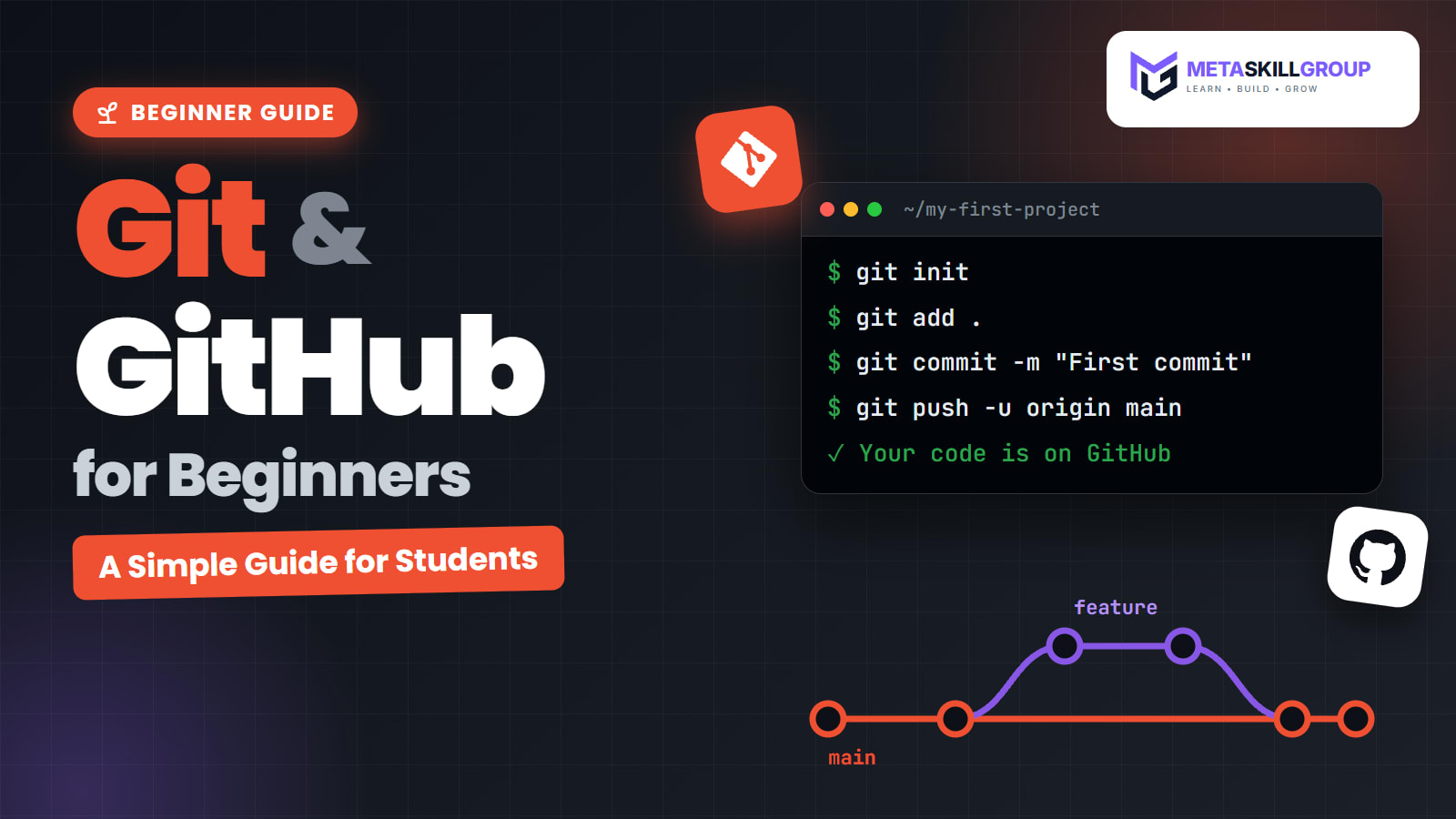
Have you ever saved files like project-final.zip, project-final-2.zip and project-final-REAL.zip? Every developer has. Git exists so that you never have to do that again.
Git and GitHub are two of the most useful tools you can learn as a student developer. Git keeps the full history of your code, so you can go back to any earlier version. GitHub stores that code online, so you can share it, work with a team and show your projects to companies. This guide explains both in simple words, with every command you need to get started.
💡 Quick answer: Git is a free tool on your computer that saves versions of your code, called commits. GitHub is a website that stores your Git projects online. The basic workflow is: make changes,
git addthem,git committhem with a message, andgit pushthem to GitHub. Learn these, plus branches and pull requests, and you know enough Git for your first internship.
💡 Who is this guide for? Students and beginners who have never used Git, or who know a few commands but want to understand what they actually do.
In this guide:
- What Is Git?
- What Is GitHub?
- Git vs GitHub
- Why Every Student Developer Needs Git
- How to Install and Set Up Git
- The Basic Git Workflow
- Your First Repository, Step by Step
- Pushing Your Project to GitHub
- Branches and Merging
- Pull Requests: How Teams Work Together
- The .gitignore File
- Git Commands Cheat Sheet
- How to Make Your GitHub Profile Stand Out
- Common Beginner Mistakes and How to Fix Them
What Is Git?
Git is a version control system. It is a free program that runs on your computer and keeps track of every change you make to the files in a project.
Each time you reach a good point in your work, you save a snapshot called a commit. Every commit has a short message, like "Add login form", so you can later see what changed and when. If something breaks, you can go back to an earlier commit in seconds.
Git was created in 2005 by Linus Torvalds, the creator of Linux, and today almost every software team in the world uses it.
What Is GitHub?
GitHub is a website that hosts Git projects online. A project stored there is called a repository, or "repo" for short.
With GitHub you can:
- Back up your code online, so it is safe even if your laptop breaks
- Share your projects with anyone through a link
- Work on the same project with other developers
- Review each other's code through pull requests
- Host a simple website for free with GitHub Pages
GitHub is not the only option; GitLab and Bitbucket do similar jobs. But GitHub is the most popular, and it is where most recruiters look for your work.
Git vs GitHub
Many beginners think Git and GitHub are the same thing. They are not, but they work together.
| Git | GitHub | |
|---|---|---|
| What it is | A version control tool | A website that hosts Git repositories |
| Where it runs | On your computer | In the cloud, in your browser |
| Needs the internet? | No | Yes |
| Main job | Saving versions of your code | Sharing code and working as a team |
| Cost | Free and open source | Free for personal projects, with paid plans for bigger teams |
A simple way to remember it: Git is like the camera that takes photos of your code, and GitHub is like the online album where you keep and share those photos.
Why Every Student Developer Needs Git
- You never lose work. Every commit is a save point you can return to.
- You can experiment safely. Try a new idea on a branch without breaking the working version.
- Teams depend on it. Every internship and job expects you to know the basics.
- Your GitHub is your portfolio. Recruiters often check it before reading your resume.
- It shows consistency. Regular commits show that you build things, not just study.
Learning Git is part of every developer path. It appears early in both our frontend developer roadmap and our Python developer roadmap, because you should use it from your very first project.
How to Install and Set Up Git
- Download Git from the official Git website. On Windows, the installer also gives you "Git Bash", a terminal for Git commands. On a Mac, running
git --versionin the Terminal will offer to install it. On Linux, use your package manager, such assudo apt install git. - Check that it worked by opening a terminal and typing
git --version. - Tell Git who you are. This name and email appear on every commit you make:
bash1git config --global user.name "Your Name" 2git config --global user.email "you@example.com" 3git config --global init.defaultBranch main
The last line names your first branch main, which is what GitHub uses too.
- Create a free account on GitHub, using the same email address.
The Basic Git Workflow
Git moves your changes through three areas on your computer, and then to GitHub:
| Area | What it means | Command to move forward |
|---|---|---|
| Working directory | The files you are editing right now | git add |
| Staging area | Changes you have chosen for the next commit | git commit |
| Local repository | All your commits, saved on your computer | git push |
| Remote repository (GitHub) | Your commits, saved online | git pull brings others' changes back |
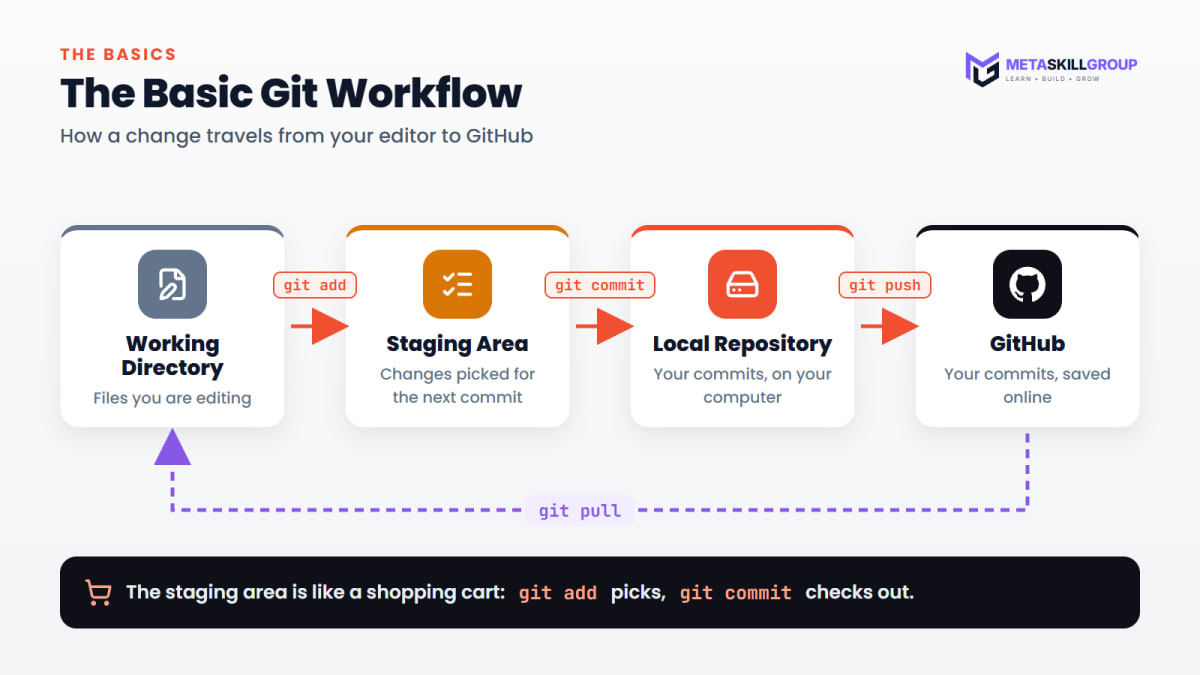
Figure 1: How a change travels from your editor to GitHub, and back with git pull.
Think of the staging area as a shopping cart. You pick the changes you want (git add), and then you check out with a message (git commit).
Your First Repository, Step by Step
Let's create a project and make your first commits. Open a terminal in an empty folder and run:
bash1# 1. Create a new Git repository in this folder 2git init 3 4# 2. Create a file (or add your project files) 5echo "# My First Project" > README.md 6 7# 3. See what Git has noticed 8git status 9 10# 4. Stage the file 11git add README.md 12 13# 5. Save a snapshot with a message 14git commit -m "Add README" 15 16# 6. See your history 17git log --oneline
Now change something in README.md, run git add . (the dot means "everything that changed") and commit again. Run git log --oneline and you will see both commits, newest first.
💡 Pro Tip: Write commit messages that say what the commit does, like "Add contact form validation". Messages like "update" or "changes" don't help anyone, including you a month from now.
Pushing Your Project to GitHub
- On GitHub, click New repository, give it a name (for example
my-first-project) and click Create repository. Leave it empty, without a README, since you already have one. - Copy the repository's URL and connect your local project to it:
bash1git remote add origin https://github.com/your-username/my-first-project.git 2git push -u origin main
The -u flag remembers the connection, so next time a plain git push is enough. The first time you push, Git asks you to log in. On Windows, Git opens your browser so you can sign in to GitHub; on other systems, GitHub's docs explain how to set up a token or SSH key.
To download an existing project from GitHub to your computer, use git clone with the repository's URL:
bash1git clone https://github.com/your-username/my-first-project.git
Branches and Merging
A branch is a separate line of work. The main branch holds your working, stable code. When you build a new feature, you create a branch, work there, and merge it back into main when it is ready.
bash1# Create a new branch and switch to it 2git switch -c add-navbar 3 4# ...edit files, then commit as usual... 5git add . 6git commit -m "Add responsive navbar" 7 8# Go back to main and merge the feature in 9git switch main 10git merge add-navbar

Figure 2: A feature branch splits off from main, gets its own commits and is merged back in.
Sometimes two branches change the same lines, and Git can't decide which version to keep. This is called a merge conflict. Git marks the conflicting lines in the file; you choose the right version, remove the markers, and commit. It looks scary the first time, but it is a normal part of teamwork.
Pull Requests: How Teams Work Together
In a team, you don't usually merge into main yourself. Instead, you push your branch to GitHub and open a pull request (PR). A pull request says: "Here are my changes; please review them before they go into main."
A typical team workflow looks like this:
- Pull the latest
mainwithgit pull - Create a branch for your task
- Commit your work in small, clear steps
- Push the branch with
git push -u origin your-branch-name - Open a pull request on GitHub with a short description and screenshots
- A teammate reviews it and may suggest changes
- Once it is approved, the branch is merged into
main
This is exactly how most internships and companies work, so practising it on your own projects is a big advantage.
The .gitignore File
Some files should never go to GitHub: installed packages, build output and, most importantly, secrets such as passwords and API keys. A file named .gitignore in your project tells Git to ignore them.
text1# Dependencies 2node_modules/ 3venv/ 4 5# Build output 6dist/ 7.next/ 8 9# Secrets and local settings 10.env 11.DS_Store
⚠️ Note: Add
.gitignorebefore your first commit. If you accidentally push a password or API key, change that password or key straight away, because it stays in your Git history even after you delete the file.
Git Commands Cheat Sheet
| Command | What it does |
|---|---|
git init | Starts a new repository in the current folder |
git clone <url> | Downloads a repository from GitHub |
git status | Shows changed and staged files |
git add <file> / git add . | Stages one file, or all changes |
git commit -m "message" | Saves a snapshot with a message |
git log --oneline | Shows the commit history, one line each |
git diff | Shows exactly what changed |
git switch -c <branch> | Creates a new branch and switches to it |
git switch <branch> | Switches to an existing branch |
git merge <branch> | Merges a branch into the current one |
git remote add origin <url> | Connects your project to GitHub |
git push | Sends your commits to GitHub |
git pull | Gets the latest changes from GitHub |
git restore <file> | Undoes uncommitted changes to a file |
The free Pro Git book and GitHub Docs explain every command in more depth.
How to Make Your GitHub Profile Stand Out
Your GitHub profile is often the first thing a recruiter sees, so a little effort here goes a long way.
- Add a profile README. Create a repository with the same name as your username, and its README appears on your profile. Write two lines about you, your skills and what you are learning.
- Pin your best 4–6 projects. Choose finished projects, not half-done practice folders.
- Write a README for every project: what it does, the tech stack, how to run it, a screenshot and a live link.
- Commit regularly. Small, steady commits show that you build things often.
- Use clear repository names, like
weather-app-react, notproject1ortest.

Figure 3: Four things that make your GitHub profile look professional.
Our guide to getting a web development internship with no experience explains how to use your GitHub and LinkedIn together when you apply.
Common Beginner Mistakes and How to Fix Them
| Mistake | How to fix it |
|---|---|
| Wrote the wrong commit message | git commit --amend -m "Correct message" (only before you push) |
| Want to undo changes in a file | git restore <file> |
| Staged a file by mistake | git restore --staged <file> |
| Pushed a password or API key | Change the password or key immediately, then remove the file and add it to .gitignore |
Committed node_modules or venv | Add it to .gitignore, then run git rm -r --cached node_modules and commit |
git push is rejected | Run git pull first to get the latest changes, fix any conflicts, then push again |
Making mistakes in Git is completely normal. Almost everything can be undone, which is exactly why Git is so useful.
Final Thoughts
Git and GitHub feel strange for the first week and natural after a month. Start with add, commit and push on your own projects, then practise branches and pull requests. Keep your GitHub tidy, with clear READMEs and live links, and it becomes the strongest part of your portfolio.
The best way to get comfortable with Git is to use it on real projects with a team. You can do a free internship at MetaSkillGroup, where you build real features for our own products and our team reviews your work. Our online developer internship is open all year in six tracks. It takes about 2 minutes to apply, and your first exam attempt is free.
- #git
- #github
- #git and github
- #version control
- #git commands
- #github for beginners
- #developer tools
- #beginner guide
Related posts
 Internship Report Format for BCA and B.Tech Students (With Sample)A complete internship report format for BCA and B.Tech students: the 15 sections in order, the formatting rules most colleges follow, sample text for the declaration, acknowledgement and abstract, a sample weekly work log, a chapter plan and a final checklist before you submit.
 How to Prepare for an Internship Entrance Test in 2026 (With Sample MCQs)A simple 2026 guide to preparing for an internship entrance test: what the aptitude, DSA and track-skill sections look like, a 2-week study plan, 10 sample MCQs with answers, speed tips for timed questions and an exam-day checklist for online tests.
 How to Get a Web Development Internship With No Experience (2026 Guide)No experience? No problem. A step-by-step 2026 guide to your first web development internship: pick one track, learn the basics in 30 days, build three small projects, set up GitHub and LinkedIn, and prepare for the entrance test.
❓ FAQs
Git is a free version control tool that runs on your computer and saves versions of your code. GitHub is a website that stores Git repositories online, so you can share code, work with a team and show your projects.
No. You need only a few commands to start: git init, git add, git commit, git push and git pull. Most beginners are comfortable with the basics within a week of regular use.
Yes. GitHub is free for personal projects, with unlimited public and private repositories. Students can also apply for the GitHub Student Developer Pack, which gives free access to many developer tools.
A commit is a saved snapshot of your project at a point in time, with a short message describing the change. You can view, compare and go back to any earlier commit.
A branch is a separate line of work. You build a new feature on a branch without touching the main code, and merge it back into main when it is ready.
A pull request is a request to merge your branch into another branch, usually main. Teammates review the changes, suggest improvements and approve them before they are merged.
git fetch downloads new changes from GitHub but does not change your files. git pull downloads them and merges them into your current branch in one step.
Add installed packages such as node_modules or venv, build folders such as dist, and secret files such as .env. These should never be pushed to GitHub.
If you have not pushed yet, git reset --soft HEAD~1 undoes the last commit and keeps your changes staged. If you have already pushed, use git revert, which adds a new commit that safely undoes the change.
A GitHub profile shows real code, finished projects and how regularly you build. Pinned projects with clear READMEs and live links help recruiters see your skills quickly.
Comments
Join the conversation
Login to post comments and replies
No comments yet. Be the first!